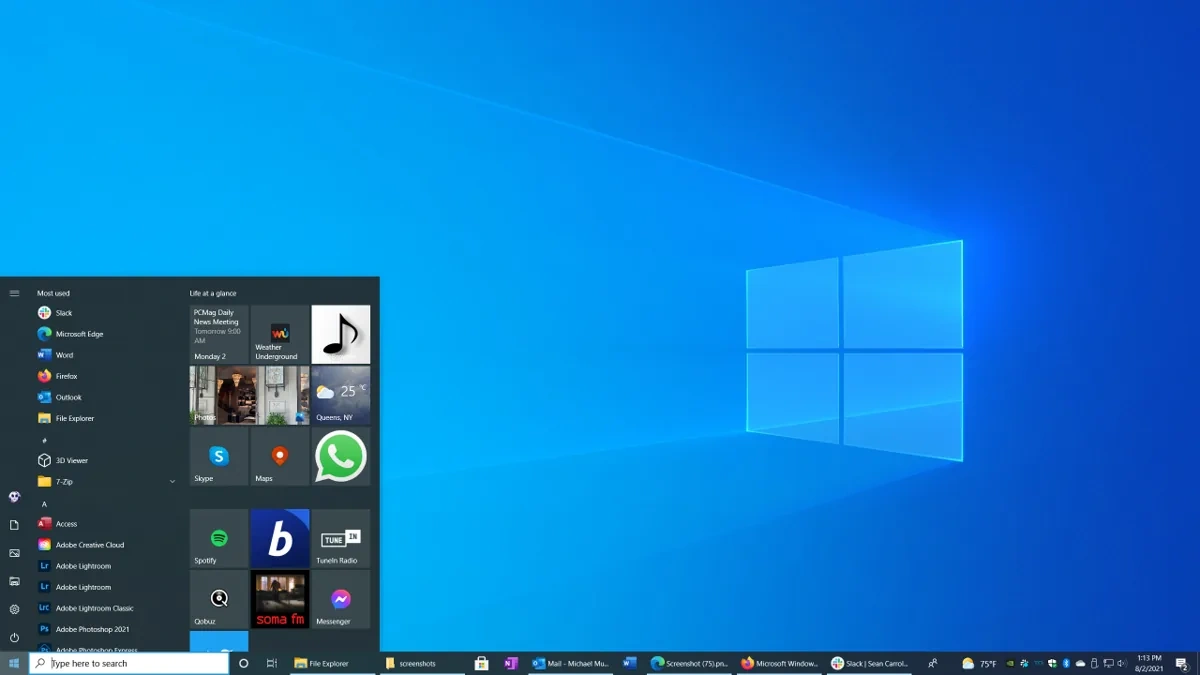

Okay, let’s talk about Windows 10 support . Microsoft is ending support for Windows 10, and for many of us in India, that’s… well, it’s a bit of a headache, isn’t it? We’re often juggling older hardware and budgets, and the thought of upgrading everything again can feel overwhelming. But don’t panic! This isn’t a sudden cliff edge. Think of it more like a slow, gradual sunset. Let’s be honest, change is never easy, especially when it involves our tech. But understanding what this “end of life” actually means and how to prepare is the key. This guide will not only walk you through it but also explain why it’s happening and offer practical solutions for staying secure and productive.
What Does “End of Life” Really Mean for Windows 10?

So, what does “end of life” actually mean? Simply put, after a certain date, Microsoft will no longer provide security updates, non-security updates, or any assisted support for Windows 10. As per the official Microsoft lifecycle policy, this date is set for October 14, 2025. This doesn’t mean your computer will suddenly stop working. You can still use it, but it becomes increasingly vulnerable to security threats. Imagine leaving your front door unlocked in a neighborhood where things occasionally go missing – that’s what running an unsupported operating system is like. A common mistake I see people make is assuming it’s just about new features. It’s far more critical than that. It’s about ensuring your system is protected from the latest malware and vulnerabilities.
But, it’s not all doom and gloom. The fact is that many individuals and businesses are still using older versions of Windows for different reasons, so understanding the implications of Windows 10 end of service is key. This gives you ample time to prepare and transition smoothly.
Why is Microsoft Ending Support? (And Why Should You Care?)
This is the big question, right? Why is Microsoft doing this? Well, a few reasons. Firstly, technology moves fast. Maintaining an operating system requires constant investment. Eventually, it makes more sense to focus resources on newer platforms like Windows 11 (and whatever comes next!). Think of it like maintaining an old car; at some point, the repairs become more expensive than buying a new one. Also, security threats evolve constantly. Older operating systems become harder to defend. The underlying code becomes outdated, making them easier targets for hackers. This is about protecting everyone – from individual users to large organizations. What fascinates me is how quickly the threat landscape changes; what was secure yesterday might be vulnerable tomorrow. And let’s be honest, Microsoft has a vested interest in pushing people towards their latest products – it’s how they stay in business. But, the security angle is definitely the most crucial.
Your Options | Navigating the Post-Support Landscape
Okay, so what can you actually do? You’ve essentially got three main options. Let’s break them down, and I’ll give you the pros and cons from an Indian perspective, keeping in mind budget constraints and the availability of resources.
- Upgrade to Windows 11: This is the most straightforward solution. If your hardware meets the minimum requirements (and that’s a big if for many of us), upgrading to Windows 11 is the best way to stay secure and receive the latest features. Check Microsoft’s official website (https://www.microsoft.com/en-in/windows/windows-11-specifications ) to see if your system is compatible. The one thing you absolutely must double-check is the processor and TPM (Trusted Platform Module) requirements. I initially thought this was straightforward, but then I realized that many older systems simply won’t make the cut.
- Continue Using Windows 10 (With Caution): This is the riskiest option. You can keep using Windows 10 after the end-of-life date, but you’re essentially exposing yourself to potential security threats. If you choose this path, make sure you have a robust antivirus program installed and keep your software updated. Limit your exposure to unknown websites and be extra careful about opening email attachments. Think of it as driving a car without insurance – you can do it, but you’re taking a big risk.
- Switch to a Different Operating System: This might sound drastic, but it’s a viable option, especially if your hardware is outdated. Linux distributions, such as Ubuntu or Fedora, are free, open-source, and often require fewer resources than Windows. The initial learning curve can be a bit steep, but there’s a huge online community to help you. Plus, many popular applications have Linux versions or alternatives. A common mistake I see people make is thinking Linux is only for techies. It’s become much more user-friendly over the years.
Another option is to consider extended security updates , which Microsoft might offer for a fee. However, this is generally targeted at businesses and organizations, and it can be quite expensive for individual users. So it makes sense to explore other options that are budget friendly and that you can implement on your own.
Practical Steps to Prepare for the Windows 10 Shutdown
Alright, so how do you actually prepare? Here’s a step-by-step guide to get you started:
- Assess Your Hardware: Check if your computer meets the minimum requirements for Windows 11. If not, start exploring other options.
- Backup Your Data: This is crucial! Before making any major changes, back up your important files and documents. You can use an external hard drive, cloud storage, or a combination of both.
- Research Your Options: Explore the pros and cons of each option (upgrading, continuing with caution, or switching to a different OS). Consider your budget, technical skills, and security needs.
- Create a Plan: Once you’ve decided on a path, create a detailed plan for implementing it. This might involve purchasing new hardware, installing a new operating system, or simply updating your security software.
And remember, don’t wait until the last minute! Give yourself plenty of time to prepare and avoid any unexpected surprises.
Don’t underestimate the importance of backing up your data. It’s like having a safety net – you hope you never need it, but you’ll be grateful it’s there if something goes wrong.
Ensuring Data Security Beyond 2025
Even if you choose to stick with Windows 10 for a while, it’s crucial to bolster your data protection strategies . This includes using strong, unique passwords for all your online accounts, enabling two-factor authentication wherever possible, and being extra vigilant about phishing scams. I can’t stress this enough: phishing emails are getting incredibly sophisticated. Always double-check the sender’s address and be wary of any requests for personal information. Think of it as being a detective – always question everything! Furthermore, consider using a VPN (Virtual Private Network) when connecting to public Wi-Fi networks. A VPN encrypts your internet traffic, making it harder for hackers to intercept your data.
Remember that no security measure is foolproof, but taking these steps can significantly reduce your risk. Staying informed about the latest cyber security threats is also essential. Follow reputable security blogs and news sources to stay up-to-date on emerging vulnerabilities and how to protect yourself.
Frequently Asked Questions (FAQ)
FAQ
What if I can’t afford to upgrade to Windows 11?
That’s a very valid concern! As mentioned earlier, consider exploring Linux distributions. They’re free and often require fewer resources than Windows. Also, look for refurbished computers or laptops that meet the minimum requirements for Windows 11. Sometimes you can find great deals on older models.
Will my existing software still work on Windows 11?
Most likely, yes. However, it’s always a good idea to check the compatibility of your critical applications before upgrading. Visit the software vendor’s website or search online for compatibility information.
Is it safe to use Windows 10 after the end-of-life date?
It’s not recommended. While your computer will still function, it will be more vulnerable to security threats. If you choose to continue using Windows 10, make sure you have a strong antivirus program and follow safe computing practices.
Where can I get help with upgrading or switching operating systems?
There are many resources available online, including tutorials, forums, and online communities. You can also seek help from local computer repair shops or IT professionals.
Will Microsoft offer extended security updates for Windows 10?
Microsoft might offer extended security updates for a fee, but this is generally targeted at businesses and organizations. The cost can be prohibitive for individual users.
So, there you have it. The end of life for Windows 10 doesn’t have to be a disaster. By understanding the implications, exploring your options, and taking proactive steps, you can ensure a smooth and secure transition. The digital world never stands still, and neither should we! Embrace the change, and let’s make sure our tech works for us, not the other way around. Remember, staying protected and staying updated is a continuous journey!