
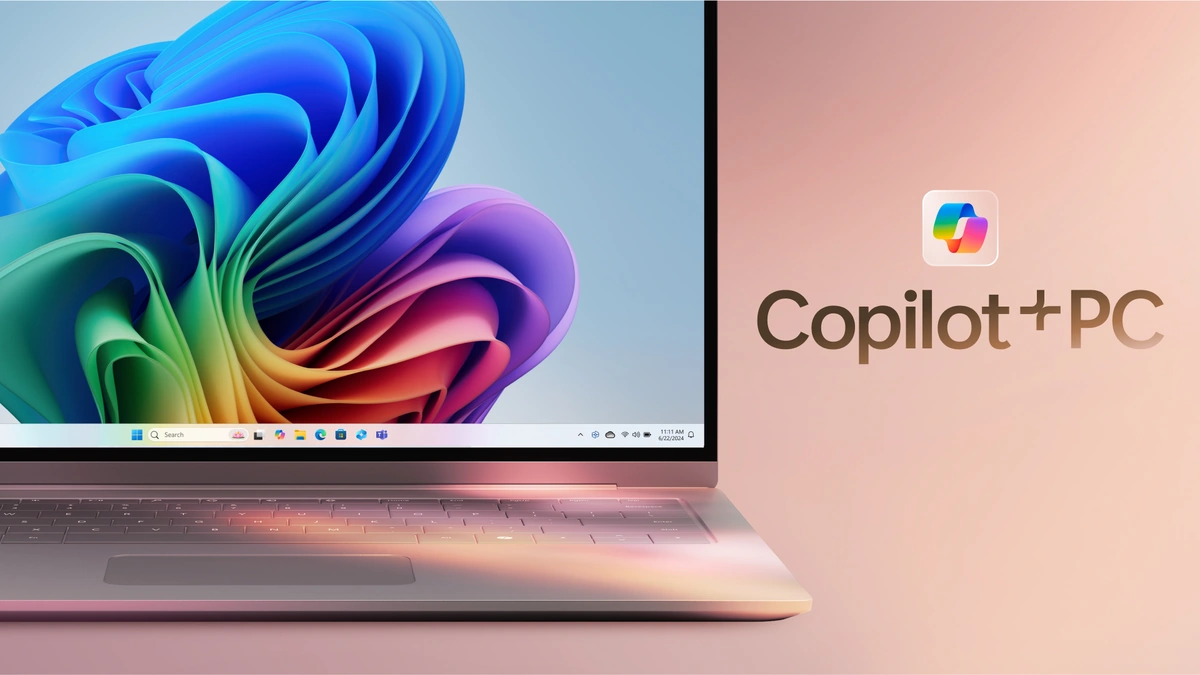
So, you’ve finally taken the plunge and updated to the latest version of Windows 11? Great! You’re probably eager to check out all the new features, and chances are, Copilot is high on your list. But what if, after the update, you find it’s mysteriously absent from your taskbar? Don’t panic! You’re not alone, and it’s usually a pretty simple fix. Let’s dive in and get Copilot up and running. Because, let’s be honest, who doesn’t want an AI assistant built right into their OS?
Why Isn’t Copilot Showing Up? The Usual Suspects
Here’s the thing: there are a few reasons why Copilot might be playing hide-and-seek. It’s rarely a major issue, but it helps to understand the possible culprits. Think of it like troubleshooting any other software glitch – systematic investigation is key! Firstly, there’s the obvious: is your Windows 11 actually up-to-date? Sometimes, a seemingly complete update can still have pending components. Secondly, check your taskbar settings; Copilot might simply be toggled off. And thirdly, there could be regional restrictions or temporary server-side issues on Microsoft’s end. Let’s explore these in a little more detail. The most common reason is that the feature is disabled by default.
Step-by-Step: How to Enable Copilot
Alright, let’s get our hands dirty. Here’s a straightforward, step-by-step guide to enabling Copilot on your Windows 11 taskbar. I’ve seen so many people struggle with this seemingly simple task, so I’m going to break it down so it’s as easy as possible to follow. It’s much easier than trying to remember your complex passwords.
- Check for Updates: First, make sure your Windows 11 is fully updated. Go to Settings > Windows Update and click “Check for updates.” Install any pending updates and restart your computer if prompted.
- Taskbar Settings: Right-click on an empty area of your taskbar and select “Taskbar settings.”
- Toggle Copilot On: In the Taskbar settings, look for the “Copilot (preview)” toggle. Make sure it’s switched to the “On” position.
- Restart (If Necessary): If Copilot still doesn’t appear, try restarting your computer. Sometimes, a simple reboot is all it takes.
Seriously, give your computer a reboot. It sounds simple, but it works 90% of the time. But if this still doesn’t work, there are other approaches available.
What if Copilot is Still Missing? Advanced Troubleshooting
Okay, so you’ve followed the steps, and Copilot is still AWOL. Don’t lose hope! We’re going to dig a little deeper. One potential issue could be related to your Microsoft account. Make sure you’re signed in with a valid Microsoft account, as Copilot relies on cloud services linked to your account. Another thing to check is your region settings. Copilot might not be available in all regions initially. If you’re using a VPN, try disabling it temporarily to see if that’s the cause. Also, verify your system meets the minimum requirements. Here’sMicrosoft’s own troubleshooterthat can help with the problem.
Beyond that, you can try running the System File Checker (SFC) to scan for and repair corrupted system files. Open Command Prompt as administrator and type `sfc /scannow`. This process can take a while, so be patient. As Wikipedia states, this tool is an important feature of windows.
Copilot: More Than Just a Taskbar Icon
But let’s step back for a second. Why are we even so eager to get Copilot on our taskbar? It’s not just about having the latest shiny toy. Copilot represents a significant shift in how we interact with our computers. It’s about having an AI assistant that can help you with everything from writing emails to summarizing documents to even generating code. Think of it as your personalized, on-demand AI guru. And the best part? It’s integrated right into the operating system, making it incredibly convenient to use. I initially thought this was a gimmick, but, after trying it, I was impressed.
Furthermore, the integration of Copilot reflects a larger trend in the tech industry toward AI-powered productivity tools. We’re moving beyond simple voice assistants to more sophisticated systems that can understand context, learn from our behavior, and anticipate our needs. Copilot is just the beginning. And if you are looking to enhance your experience, perhaps looking at this article could help you out.
Embrace the Future (Even if It Takes a Little Troubleshooting)
Enabling Copilot on your Windows 11 taskbar might seem like a small thing, but it’s a gateway to a whole new world of AI-powered possibilities. Don’t let a little initial troubleshooting discourage you. Once you get it up and running, you’ll wonder how you ever lived without it. And, hey, if you run into any more snags, remember that the online community is always there to help. Because, at the end of the day, technology is about empowering us, not frustrating us. Embrace the future, one taskbar icon at a time!
One last thing I wanted to mention. I think you will really be interested in the new developments in gaming tech that has also been evolving recently.
FAQ About Windows 11 Copilot
Frequently Asked Questions
Is Copilot available in all regions?
Copilot’s availability may vary by region. Check the official Microsoft website for the latest information on regional availability.
What if the Copilot toggle is missing in Taskbar settings?
If the toggle is missing, ensure your Windows 11 is fully updated. If the issue persists, it might indicate a compatibility issue or regional restriction.
Does Copilot require a specific Microsoft account?
Yes, Copilot typically requires you to be signed in with a valid Microsoft account.
Can I disable Copilot once it’s enabled?
Yes, you can disable Copilot by toggling it off in the Taskbar settings.