

Alright, let’s talk about something we interact with countless times a day: our iPhone displays. Specifically, that gorgeous, yet sometimes finicky, ‘Liquid Retina’ or ‘Super Retina’ display. What fascinates me is how much control we actually have over how these screens look and feel, and how many of us are just using the default settings. We’re talking about optimizing your viewing experience, people! So, buckle up as we dive deep into adjusting your iPhone display like a true tech professional.
Understanding Your iPhone’s Display Tech
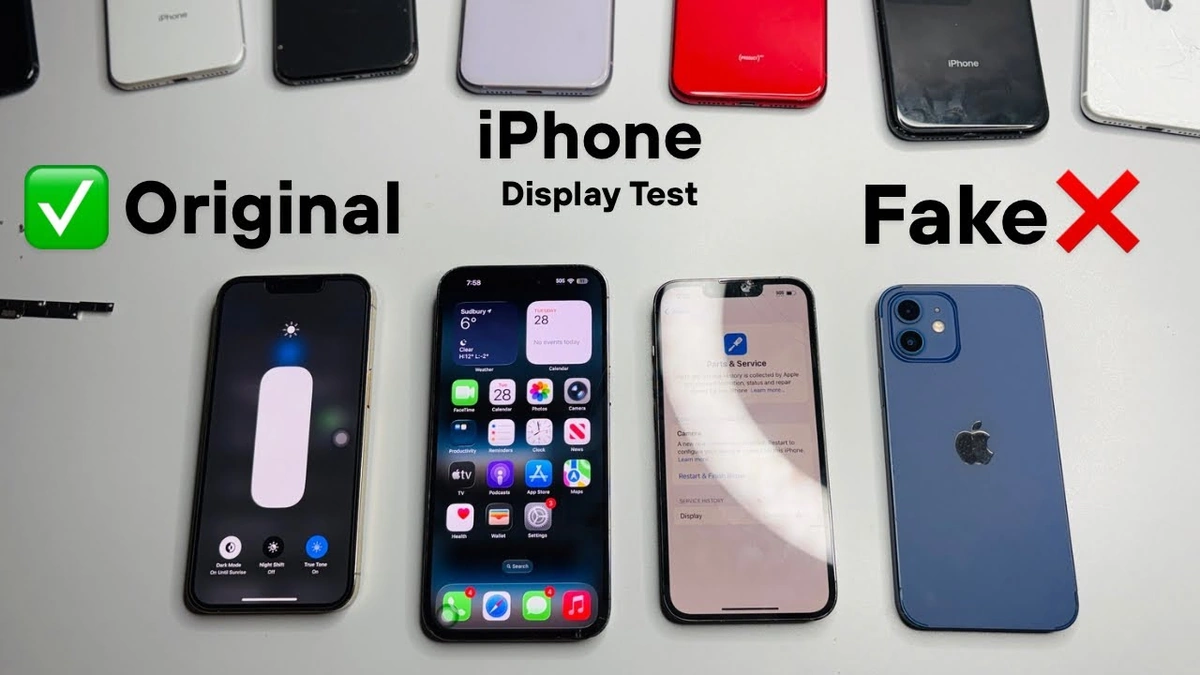
First things first, let’s peel back the marketing jargon and get to the heart of what makes your iPhone screen tick. Whether you’re rocking an older model with an LCD or a newer one boasting an OLED, there are fundamental differences that impact how you perceive color, brightness, and overall image quality. The iPhone’s display is more than just a screen; it’s a sophisticated piece of engineering designed to deliver a premium visual experience. Understanding the tech helps you fine-tune it to your preferences. But, and this is a big but, it also means understanding its limitations. A common mistake I see people make is expecting an LCD screen to perform like an OLED. They each have their strengths.
Mastering Brightness, True Tone, and Night Shift
Brightness is obvious, right? But it’s not just about sliding that bar up and down. Here’s the thing: auto-brightness, while convenient, can be a battery hog and sometimes misjudge the ambient light. Consider manually adjusting your brightness for different scenarios – dimming it way down in dark rooms and cranking it up when you’re out in the blazing sun. True Tone is another game-changer. It subtly adjusts the color temperature of your screen to match your surroundings, reducing eye strain. And Night Shift ? If you aren’t using it, you’re missing out! It filters out blue light, which can interfere with sleep. I’ve found that gradually increasing the intensity of Night Shift as evening approaches makes a huge difference. Speaking of eye strain, let’s not forget the benefits of adjusting text size and contrast for enhanced readability. These settings are easily accessible under Accessibility settings, allowing for personalized viewing experiences.
Color Filters and Accessibility Settings | More Than Meets the Eye
This is where things get interesting. Apple has baked in a surprising number of accessibility features related to display customization. Color Filters, for example, aren’t just for people with color blindness. They can be used to subtly tweak the overall color palette of your screen to something that’s more pleasing to your eyes. Want a warmer, more analog feel? Experiment with the filters. Reduced White Point is another gem. It dims the intensity of bright colors without affecting the overall brightness, which can be incredibly helpful in dark environments. And don’t underestimate the power of Increase Contrast! A lot of users overlook these settings but find them to be immensely valuable. You can access these settings under Accessibility > Display & Text Size. Don’t be afraid to play around and see what works best for you. Finding the right settingsis a journey, not a destination.
Advanced Display Calibration (The Pro Level)
Okay, we’re entering professional territory now. While iPhones don’t offer full-blown calibration tools like professional monitors, there are still ways to fine-tune the color accuracy . Using a colorimeter (a device that measures color output) in conjunction with a calibration app can help you create a custom color profile for your iPhone. This is especially useful if you’re a photographer or designer who relies on accurate color representation. Let me rephrase that for clarity: this isn’t something most users will need, but if you’re serious about color accuracy, it’s worth exploring. I initially thought this was straightforward, but then I realized how much ambient light affects perceived color. The iPhone’s sophisticated sensors and software algorithms work together to deliver stunning visuals. Adjusting the display settings allows you to tailor the viewing experience to your specific needs and preferences.
Taking Care of Your ‘Liquid Glass’ | Protection and Maintenance
All this tweaking and adjusting is for naught if you don’t take care of your iPhone’s screen . Invest in a quality screen protector – tempered glass is generally the way to go. And for the love of all that is holy, clean your screen regularly! Fingerprints and smudges not only look gross, but they can also affect your perception of color and brightness. Use a microfiber cloth and avoid harsh chemicals. Remember that the iPhone’s oleophobic coating, which resists fingerprints, can wear down over time. Consider reapplying a coating periodically to maintain its effectiveness. It’s the little things that make a difference. And by little things, I mean not putting your phone in the same pocket as your keys (we’ve all been there!). According to Wikipedia , the technology behind the screen has evolved significantly. However, proper care remains crucial for maintaining its longevity.
FAQ Section
Frequently Asked Questions About Adjusting Your iPhone Display
What if my iPhone screen looks too yellow?
Check if Night Shift is enabled or if you have a custom Color Filter applied. Disable them in Settings > Display & Brightness and Settings > Accessibility > Display & Text Size, respectively.
How do I reduce eye strain when using my iPhone for long periods?
Enable True Tone and Night Shift, adjust brightness to a comfortable level, and increase text size if needed. Take frequent breaks to rest your eyes.
Can I adjust the color temperature of my iPhone screen?
Yes, you can use Color Filters in Accessibility settings to subtly adjust the color temperature. Experiment with different filters to find what works best for you.
What’s the best way to clean my iPhone screen?
Use a soft, lint-free microfiber cloth. Avoid using harsh chemicals or abrasive materials, as they can damage the screen’s oleophobic coating.
My auto-brightness isn’t working correctly. What should I do?
Ensure that the ambient light sensor isn’t obstructed. Restart your iPhone. If the problem persists, consider turning off auto-brightness and adjusting manually. Check if the “Reduce White Point” setting is enabled as it can affect perceived brightness.
Is it worth investing in a screen protector?
Absolutely! A screen protector can prevent scratches and cracks, protecting your investment. Tempered glass protectors offer the best protection.
So, there you have it – a deep dive into adjusting your iPhone’s ‘Liquid Glass’ display. It’s not just about making things look pretty; it’s about optimizing your viewing experience for comfort, accuracy, and personal preference. Don’t be afraid to experiment and find what works best for you. And remember, a well-cared-for display is a happy display! For more on iOS features and updates, check out the latest news here. The iPhone’s display is designed to offer seamless integration of hardware and software. This results in superior display performance and an immersive user experience.
Now, go forth and conquer your screen! You can also get more updates by following this link.